
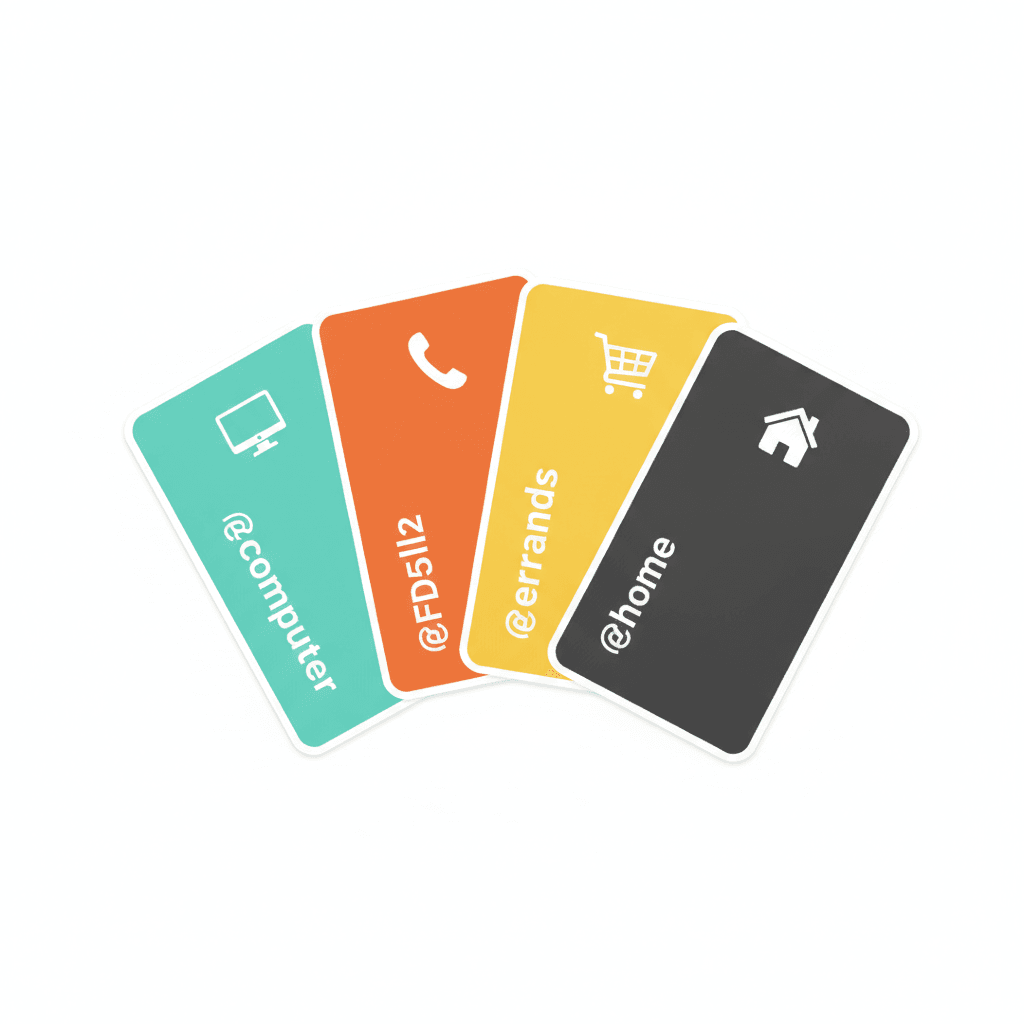
Understanding GTD context lists conceptually is one thing. Knowing what to actually put on each list is another.
Most people who try GTD context lists start with the obvious ones — @computer, @calls, @errands — and then stall. What counts as a @computer task versus an @office task? When does something go on @calls versus @email? What if a task doesn’t fit neatly into any context?
This post gives concrete examples for the most common GTD context lists, shows you how to populate each one from a real task pile, and answers the questions that come up once you’re actually using the system rather than reading about it.
The goal is practical. By the end, you should be able to sit down with an inbox full of captured items, sort each one into the right list, and leave with a set of lists you can work from immediately.
What GTD context lists are actually for
The core idea in GTD context lists is simple: organise your tasks by the conditions needed to complete them, not by project or deadline. When you open the @calls list, every item on it can be done right now with a phone in hand. No re-reading, no skipping past things that require a context you don’t currently have.
This matters most for business owners whose day shifts mode constantly — from desk work to calls to errands to meetings. Without context lists, every mode switch requires a full re-read of the task pile to find what applies right now. That re-reading is the real cost, and it compounds across a working week.
The next actions on your context lists should each be a single physical step with a clear verb — not “deal with the accountant” but “call Sarah at the accountancy firm and ask when the draft P&L will be ready.” That specificity is what makes context lists genuinely workable rather than just another reorganised to-do list.
@computer (or @desk, @online)
Everything that requires a computer with a decent internet connection and the focused mode that comes with being at your main workstation.
Examples:
- Draft the Q3 client report in Google Docs
- Update the pricing page on the website
- Review the GA4 dashboard and note the CTR drop on the /services/ page
- Respond to the three pending Asana task comments from the team
- Set up the Calendly appointment type for consultation calls
- Write the proposal for the Manchester client — include the three pricing tiers
What does not belong here: a two-sentence reply to a client’s text (that’s @phone or @email), a quick approval for a contractor’s invoice (that might be @email if it needs a short note), a task that is purely administrative and can be done on a phone in five minutes.
The question to ask is: do I need to be at my desk, with my full screen and my full focus, for this? If yes, it goes on @computer. If not, it likely belongs on a lighter-weight list.
@calls (or @phone)
Any task where you need to speak to someone — not type at them. The context is voice: you need a place where you can have a real conversation, and usually the mental mode for it.
Examples:
- Call Sarah at the accountancy firm — ask when the draft P&L is ready
- Phone the venue and confirm the room layout for Thursday’s session
- Call the GP surgery and book Mum’s prescription review
- Ring Marcus re: the delivery window for the office refit
- Call the solicitor — ask about the boundary clause in clause 7.3
The key distinction: if you can resolve it by email or message, it doesn’t belong here. @calls is for things where a conversation will close the issue faster than three email exchanges. Batching these into a single slot — all calls in the same thirty-minute window — is where the context list structure saves the most time.
Many GTD practitioners separate @email from @computer because email has its own mode: faster, shallower, and prone to expansion if you let it bleed into your deep-work time. Keeping email tasks in their own list lets you process them in a dedicated slot without it crowding out focused project work.
Examples:
- Send the revised proposal to David — attach the updated pricing sheet
- Reply to Jessica’s LinkedIn message re: the collaboration ask
- Forward the planning application reference number to the solicitor
- Send invoice #047 to Northgate Ltd
- Email the team the updated project brief before end of week
If you do not currently separate @email from @computer, that’s fine — start with the broader list and split them once you notice email is consistently crowding out the focused work you planned for the same slot.
@errands
Tasks that require you to be physically out of your home or office. Batching these into a single list is one of the most practical payoffs of the GTD system — instead of four separate trips over the week, you plan a single circuit.
Examples:
- Post the signed contract at the Post Office
- Pick up the printer cartridges from the office supplies shop
- Drop off the equipment loan at the storage unit
- Get the car booked for an MOT — book first (goes on @calls until confirmed)
- Return the library books
Note: some items start as @calls (booking the errand) and move to @errands once confirmed. That transition is worth tracking — it’s part of what keeps your lists accurate rather than stale.
@home
Tasks that can only be done at home — not because they require a computer, but because they need the physical space or the mental mode of being home rather than working.
Examples:
- Sort the filing box in the spare room — organise by tax year
- Write the week’s grocery list and put the order through
- Deal with the building management letter sitting on the kitchen counter
- Have the conversation with Jaya about the school holiday dates
- Set up the router parental controls for the boys’ devices
@home keeps personal-life tasks visible without them landing on your work task lists and creating noise at the wrong moment. You open this list when you’re home and have a window — not during a client call.
@waiting (the Waiting For list)
Technically a separate list in GTD rather than a pure context, but reviewed on the same weekly cadence as the rest. The Waiting For list holds every task you’ve handed off or are expecting from someone else — not because the next action is yours, but because the outcome still matters to you.
Examples:
- Waiting: accountant to send draft P&L — emailed 16 Sep, follow up by 24 Sep
- Waiting: Marcus to confirm venue availability — WhatsApp sent 14 Sep
- Waiting: client sign-off on the revised brief — due by end of this week
- Waiting: supplier to confirm the delivery window — chasing 19 Sep
Each entry includes: the specific deliverable, who you’re waiting on, the date you sent the request, and the date you’ll follow up if nothing arrives. Without those four fields, the list becomes a parking bay rather than a tracking system.
@agenda (or @person)
A useful addition once you’re running regular meetings or have a team. This holds topics that need to come up in a specific conversation — not urgent enough for an immediate call, but worth raising when you have that person in front of you.
Examples: @Tom — confirm his capacity for the next sprint. @Rachel — review the draft before it goes to the client. @team meeting — raise the retainer renewal question.
One sub-list per standing meeting keeps these organised. During the meeting, you work through the list and clear it. Between meetings, you add to it whenever something comes up that isn’t worth interrupting anyone for right now.
How to decide which context a task belongs in
When a task doesn’t fit neatly, ask one question: what is the minimum I need to be able to do this?
If the answer is a computer and a focused window — @computer. If it’s a phone and five minutes — @calls. If it means being out of the house — @errands. If it only makes sense at home — @home.
The secondary question is: what is the lightest context that works? A task that can be done on a phone also works on a laptop, but if the phone is sufficient, putting it on @calls makes it available in shorter windows — commuting, waiting for a call to start, ten minutes between meetings. Matching the task to its lightest possible context is what lets you use those short windows productively rather than defaulting to checking email.
One task, one context. Don’t duplicate tasks across lists — that defeats the purpose and recreates the flat to-do list problem the system was built to solve.
Common mistakes when building context lists
Creating too many contexts is the most common failure. Seventeen context lists means you’ve recreated the complexity you were trying to escape. Five to eight is the practical ceiling for most people. Anything beyond that usually means you’re organising by project — which is what the GTD projects list handles — rather than by work mode.
Treating “online” as a context is the second most common mistake. Everything is online now, which makes @online useless as a category. The relevant distinction is usually between tasks that need concentrated screen time and tasks that can be handled on a phone. Separate those, not online from offline.
Not updating the lists during the weekly review is how context lists go stale. The weekly pass is where you clear completed tasks, check that every item still has a realistic context, and move anything that has been sitting untouched for two weeks onto the someday/maybe list or out of the system entirely. Skip this and the lists drift into another form of inbox.
The GTD 2-minute rule applies during processing, not during context-list work. When you’re processing your inbox and clarifying each item, anything that takes under two minutes gets done immediately — it never makes it onto a context list. Context lists hold only the tasks that genuinely required scheduling. Keeping that distinction sharp is what makes the lists trustworthy.
Putting context lists to work
Context lists become useful the moment you stop managing them and start working from them. The goal is not a perfect taxonomy — it’s a set of lists that take the decision out of “what should I do right now given where I am and what I have available.”
Start with five: @computer, @calls, @email, @errands, @home. Add @waiting straight away — every delegation and handoff goes on it from day one. Build from there as your real day demands it, not from a template.
If you want to see how context lists connect to the natural planning model, the weekly review, and a full capture-to-action workflow, the free NP System course covers all of it — eleven modules, no charge. You can grab it at nerdproductivity.com/productivity-system/.