
Understanding what a GTD next action is takes about five minutes. Knowing what one looks like when you’re staring at a pile of real tasks — client calls to return, proposals half-finished, school admin piling up — takes considerably more.
Most people who try GTD get stuck at the processing stage. They know a next action should be physical and specific, but when it comes to their own list, they write ‘sort the accountant stuff’ or ‘chase Marcus’ and wonder why nothing moves.
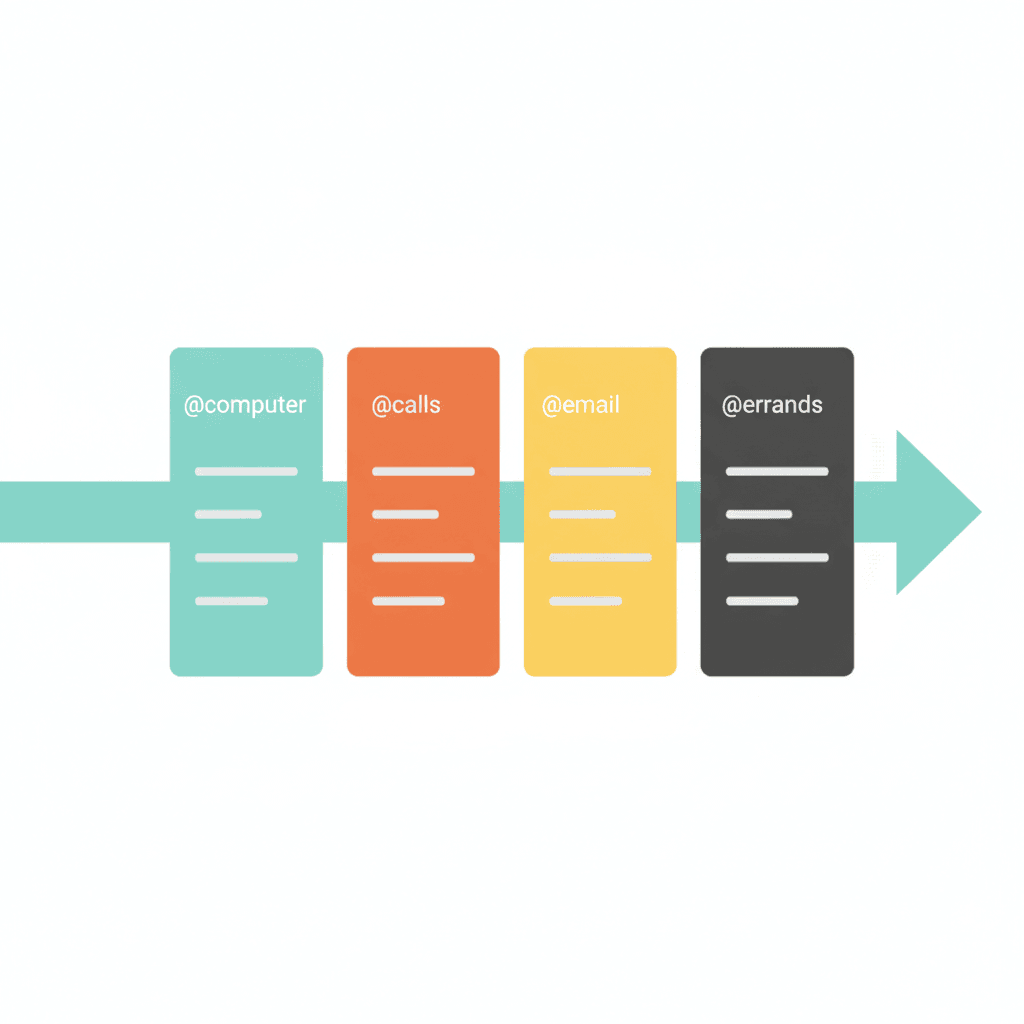
This post gives you concrete examples across the contexts most business owners actually work in: @computer, @calls, @email, @errands, @home, and @waiting. It also covers the harder cases — the vague items that don’t obviously belong anywhere, and how to convert them into something you’ll actually do.
What makes something a valid GTD next action
A GTD next action has three components: a physical verb, a clear object, and — where it matters — a context label. The short version: if you can’t read the task and start it within thirty seconds without any further thinking, it’s not yet a next action. It’s still a project label or a vague intention.
The difference between ‘sort the client files’ and ‘create a Google Drive folder for the Smith account and move the three invoices from Downloads into it — @computer’ is the difference between a task that sits for three weeks and one you complete before lunch.
@Computer next action examples
This is the list you open when you’re at your desk with your full screen and your focused attention. Not every digital task belongs here — short replies you can send on your phone sit better on @email or @calls. @computer is for anything that genuinely needs concentration.
- Draft the executive summary for the Henderson proposal in Google Docs — three paragraphs, pricing overview, key terms
- Review the GA4 report and note the three pages with the biggest CTR drop in a shared doc
- Update the pricing page with the new service tier descriptions
- Set up the Calendly event type for discovery calls — 45 minutes, 15-minute buffers before and after
- Write the onboarding checklist for the new account manager in Asana
- Pull the Q3 revenue figures and create the summary table for Thursday’s board deck
- Record the Loom walkthrough of the client dashboard — five minutes, no script needed
The question to ask before adding something here: do I need to be at my desk, with full focus, for this? If yes, it belongs on @computer. If a phone in hand would be enough, it probably belongs somewhere lighter.
@Calls next action examples
@calls holds tasks where a real conversation resolves things faster than three rounds of email. You need a quiet space, a phone, and the mental mode for speaking rather than typing. Batch these into a single slot — thirty to forty-five minutes — rather than picking them off one by one throughout the day.
- Call the accountancy firm and ask when the draft year-end accounts will be ready
- Phone the venue and confirm the room layout and AV setup for Tuesday’s workshop
- Call the solicitor to ask about the insurance clause in the heads of terms
- Ring Marcus to confirm his start date and what he needs from us before then
- Call the school to book Kian’s sports day ticket before the 25th deadline
- Phone the supplier and chase the delayed delivery on order #4471
The key distinction: if you can resolve it by message, it doesn’t belong here. @calls is for the things where a conversation closes the issue faster than back-and-forth in writing.
@Email next action examples
Many GTD practitioners keep @email separate from @computer because email has its own mode: faster, shallower, and prone to expansion if you let it bleed into focused work time. Keeping email tasks on their own list lets you process them in a dedicated slot without crowding out project work.
- Send the revised proposal to Sarah — attach the updated pricing sheet and the case study PDF
- Reply to James’s LinkedIn message about the collaboration enquiry — brief, warm, invite to a call
- Forward the planning application reference number to the solicitor with a note on the timeline
- Email the team the updated project brief and the new deadline for the first deliverable
- Send invoice #089 to Northgate Ltd — include the bank details in the footer
If you don’t currently separate @email from @computer, start with the broader list and split them once you notice email consistently crowding out the focused work you planned for the same block.
@Errands next action examples
@errands holds everything that requires you to be physically out of your home or office. This list’s real value is batching — one planned circuit replaces four separate trips across the week.
- Post the signed NDA at the Post Office — last collection is 17:30
- Pick up the printer cartridges from the office supplies shop on the high street
- Drop the equipment off at the storage unit
- Return the library books — Veer’s are due Friday
Note that some items start as @calls (booking the errand) and move to @errands once confirmed. Tracking that transition is part of what keeps your lists accurate.
@Waiting next action examples
The GTD Waiting For list holds every handoff and delegation you’ve made. It’s not a task you can act on — it’s a tracker. Without it, delegated work quietly disappears into the background until a deadline forces a crisis chase.
The format that keeps @waiting useful: the specific deliverable, who you’re waiting on, the date you sent the request, and the follow-up date if nothing arrives.
- Waiting: accountant to send draft P&L — emailed 17 Sep, follow up by 25 Sep if nothing
- Waiting: client sign-off on the revised brief — shared 18 Sep, due by end of this week
- Waiting: venue to confirm AV availability — WhatsApp sent 19 Sep, follow up 22 Sep
- Waiting: Marcus to return the signed contract — sent 16 Sep, chasing 23 Sep
- Waiting: supplier to confirm dispatch date for order #4471 — called 20 Sep, chase 24 Sep
Reviewed weekly during the GTD weekly review, this list catches everything that’s drifted. The follow-up date is the key field — without it, @waiting becomes a parking bay rather than a tracking system.
Converting vague tasks into next actions
Most items on an unprocessed task list are reminders that something exists, not instructions for what to do about it. The processing step in GTD is where you convert those reminders into physical actions.
| Vague task | GTD next action |
|---|---|
| Sort the accountant stuff | Email the accountancy firm and ask for the list of documents needed to file the year-end accounts — @email |
| Chase Marcus | Call Marcus and ask when he expects to send the revised brief — @calls |
| Sort the website | Open the homepage on mobile and list the three sections that need updating in a Google Doc — @computer |
| Deal with the insurance | Call the broker and ask for an updated renewal quote for the business liability policy — @calls |
| School admin | Email the school office to confirm Veer’s sports day slot and ask about the timings — @email |
See the pattern: every vague label gets a specific verb (call, email, open, list), a specific object (who, what exactly), and a context label that tells you when it’s workable. These are the three moves that turn a task list you avoid into one you actually use.
Next actions for the harder business owner scenarios
Some tasks resist next-action thinking because the project is genuinely complex, or because a decision is buried inside it. These are the items that drift longest on a flat to-do list.
‘Hire a new team member’ is a project with dozens of steps. The one visible next action right now might be: ‘Write a two-paragraph job description for the account manager role in Google Docs — @computer.’ Nothing else is needed yet.
‘Decide what to do about the underperforming product line’ is not a next action — it’s a decision that needs information. The real next action is: ‘Pull the last three months of sales data for the product line into a single sheet — @computer.’ The decision comes after the data exists.
‘Fix the client relationship’ is an intention, not a physical step. The next action might be: ‘Email James to book a thirty-minute call this week and acknowledge the delay on the project — @email.’
The pattern holds across all of them: any time you can’t read a task and start it within thirty seconds, ask what the first physical step is. Write that one thing. The rest follows.
This is also where the GTD 2-minute rule applies during processing: anything that takes under two minutes gets done immediately rather than getting added to a context list. Context lists hold only the tasks that genuinely required scheduling.
Once you’ve processed items into well-formed next actions, they feed directly into your GTD context lists. The GTD context list examples post covers what goes on each list and when to open it — a practical companion to this one.
What changes when your next actions are clear
The clearest sign that a GTD system is working is the absence of micro-decisions at the start of each work block. When every item on your list is a concrete physical step, you open the right context list for where you are and start. There’s no re-reading, no interpreting, no stalling.
The business owner who runs on a well-formed next-action list doesn’t spend mental energy deciding what to work on. The system holds those decisions. Each session starts with clarity, and the work becomes simpler — not because there’s less of it, but because the path through it is visible.
If you want to see how next actions connect to the full GTD workflow — capture, processing, the projects list, and the weekly review — the free NP System course walks through all four phases across eleven modules. You can start the free NP System course here.